FilePrepKit categories
Check and repair SVG
Check an SVG before work and safely correct only the problem you have found.
Check and repair SVG
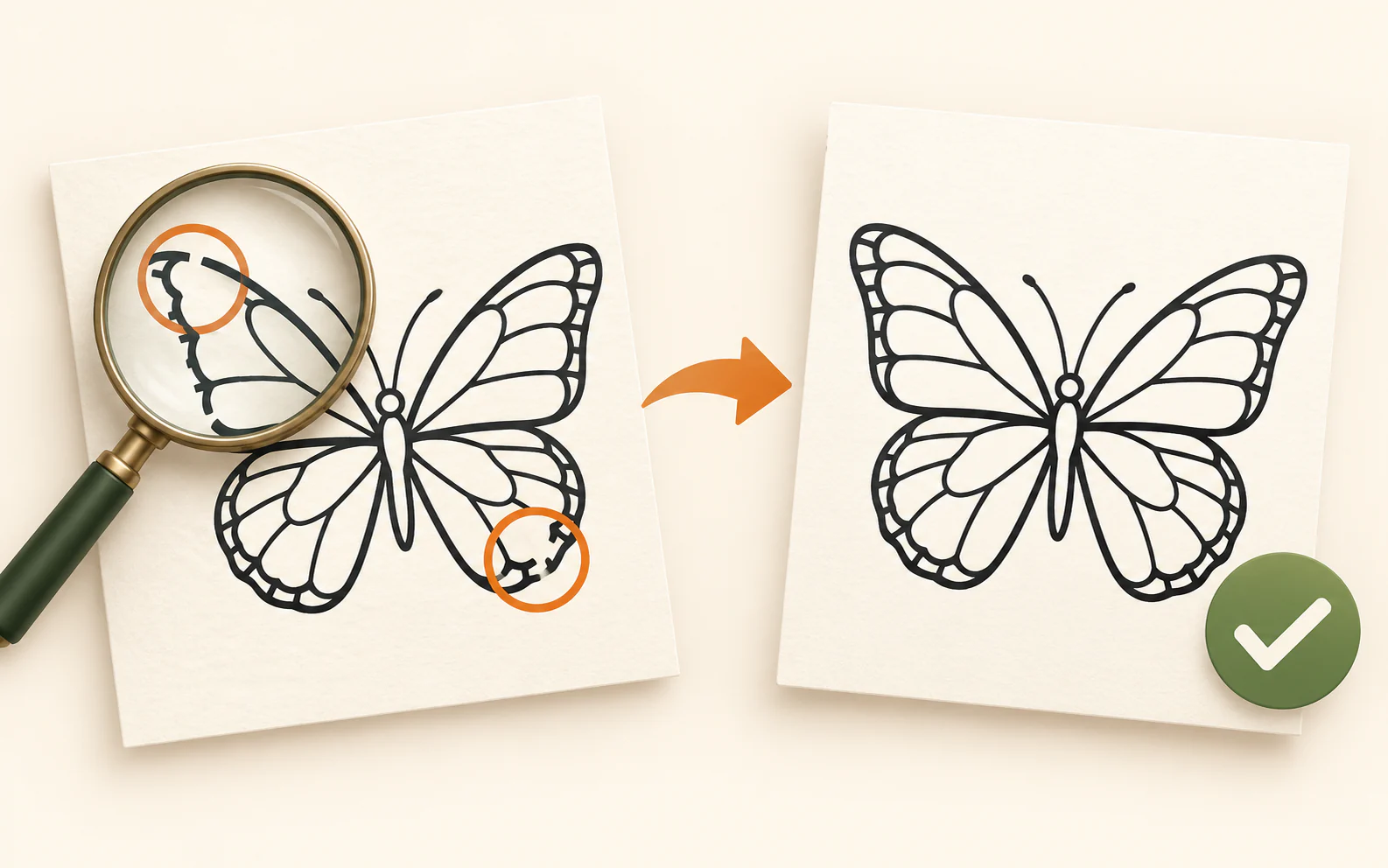
Check an SVG before cutting
Review paths, physical size, raster images, fine details and whether the artwork fits your laser bed — before a test cut or production run.
Proceed to tool →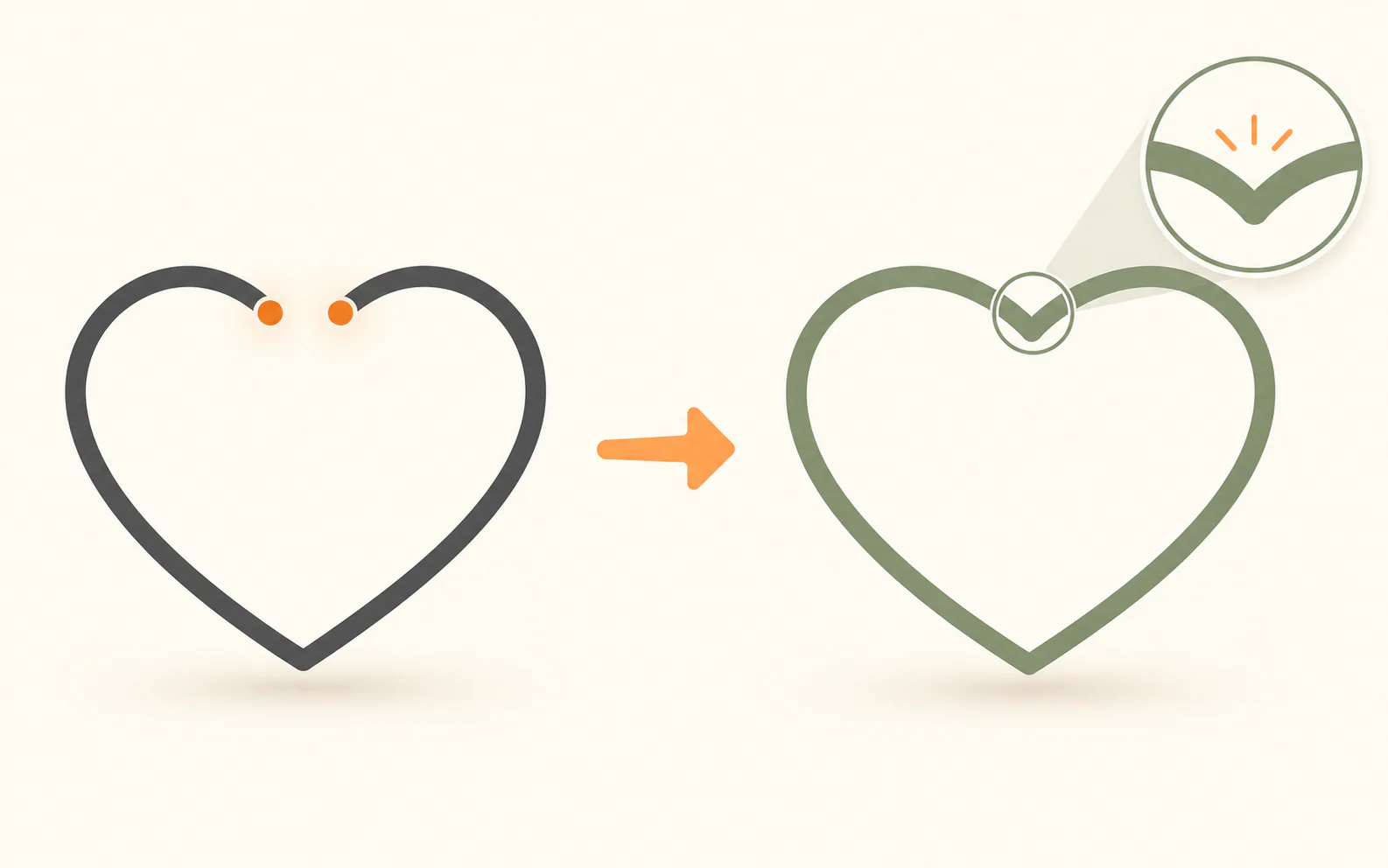
svg-path-fixer
Proceed to tool →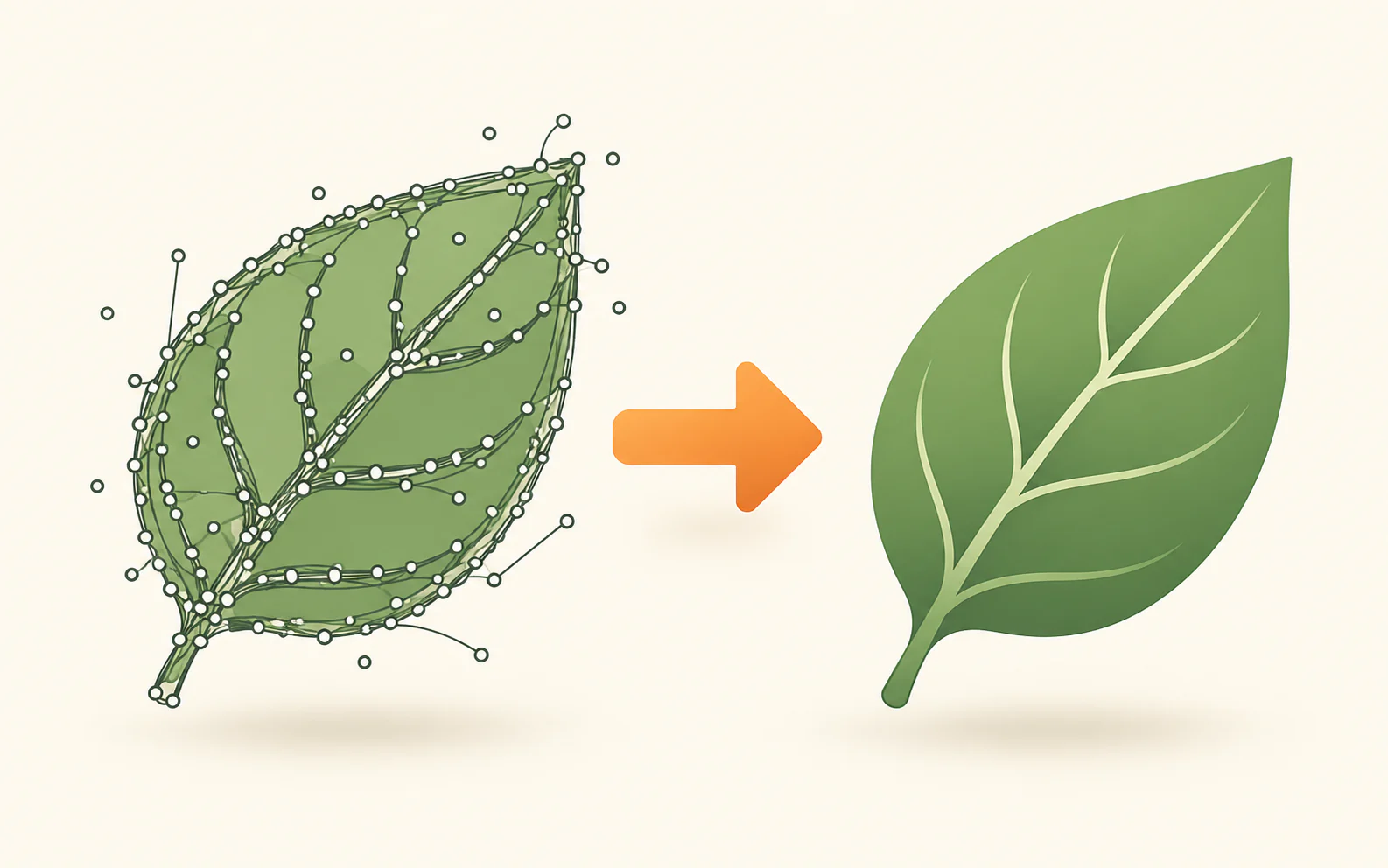
Clean SVG export clutter without changing cut geometry
Remove technical metadata and unsafe code locally. Precision-changing compacting is optional and off by default.
Proceed to tool →
Recolor your SVG
Change ordinary SVG fills and strokes locally in your browser.
Proceed to tool →
Split solid SVG colours into separate files
See every solid colour in a laser file, inspect the matching objects, then export a combined selection or separate colour layers.
Proceed to tool →FILEPREPKIT
Check and repair SVG before production
Start here when an SVG must be reliable for cutting, engraving or delivery. Check the file first, then use a focused correction only when it is needed.