Designs and layout
A purchased SVG bundle or a working folder can contain hundreds of files with names such as 1.svg, 5009.png and several versions of the same design. Opening every file in a browser, Inkscape or CorelDRAW is slow. A visual catalog lets you see the collection first, open the right design larger and then continue with the technical checks.
What the catalog does — and does not do
The catalog opens selected files, one folder or one ZIP archive locally in your browser. It shows SVG and PNG as thumbnails, lets you search and filter them, and keeps unfamiliar formats such as CDR visible by name. It does not edit CDR, convert unknown formats, prepare a file automatically for cutting or upload your files to a server.
That distinction matters: a good-looking thumbnail is a faster way to find a design, not proof that its paths, physical size or cutting settings are ready.

Find a design visually
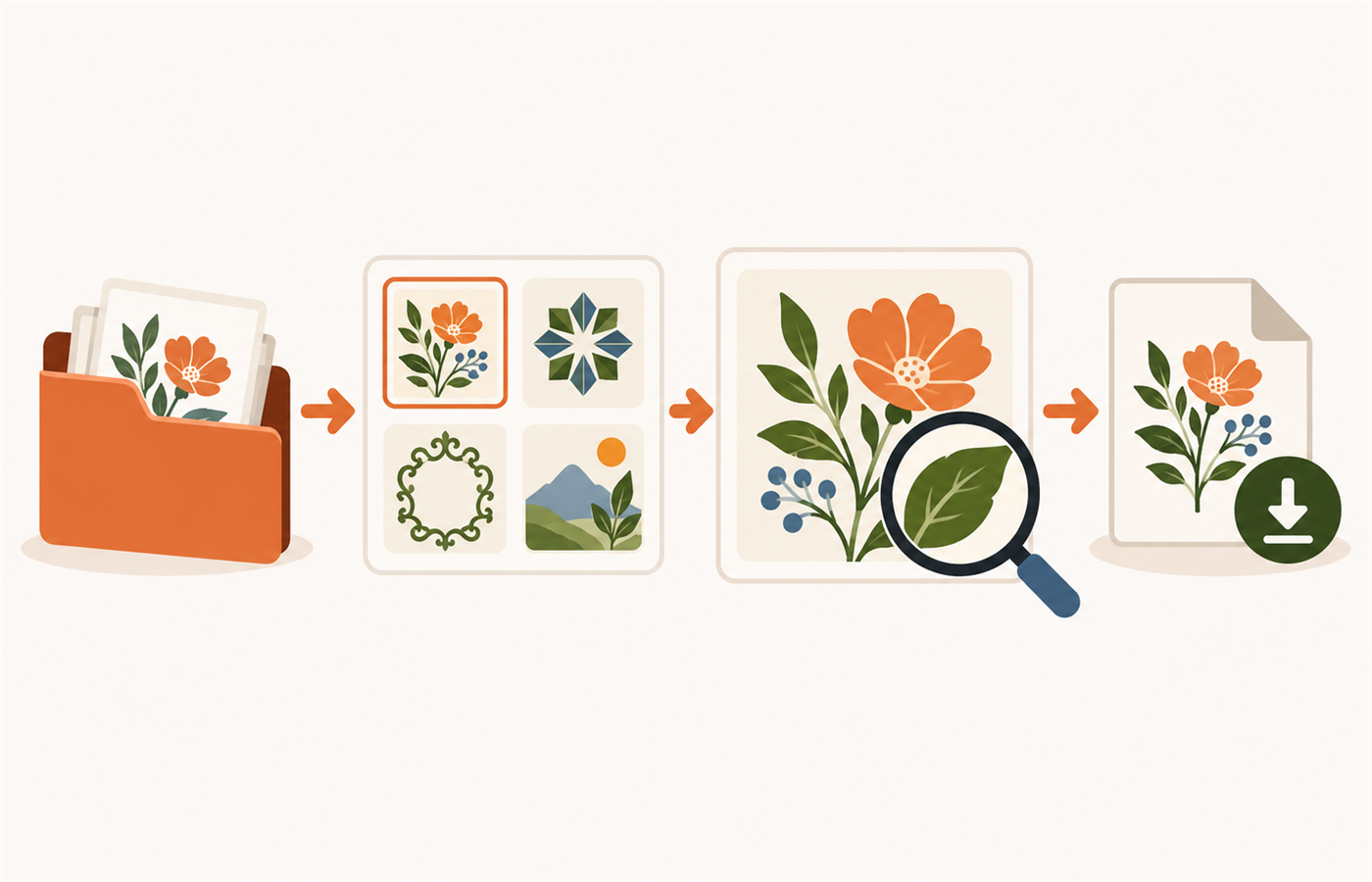
Start with one related folder or one ZIP archive. Use the thumbnails to recognise a shape, then use the name search when you know a collection number, topic or word from the filename. Filter to SVG when you need a vector design, or PNG when you need a raster image or an existing preview.
- Open the card that looks right.
- Inspect it in the large preview; use zoom when two variants look similar.
- Check the filename before saving a copy.
- Only then continue to size, path or layout work.
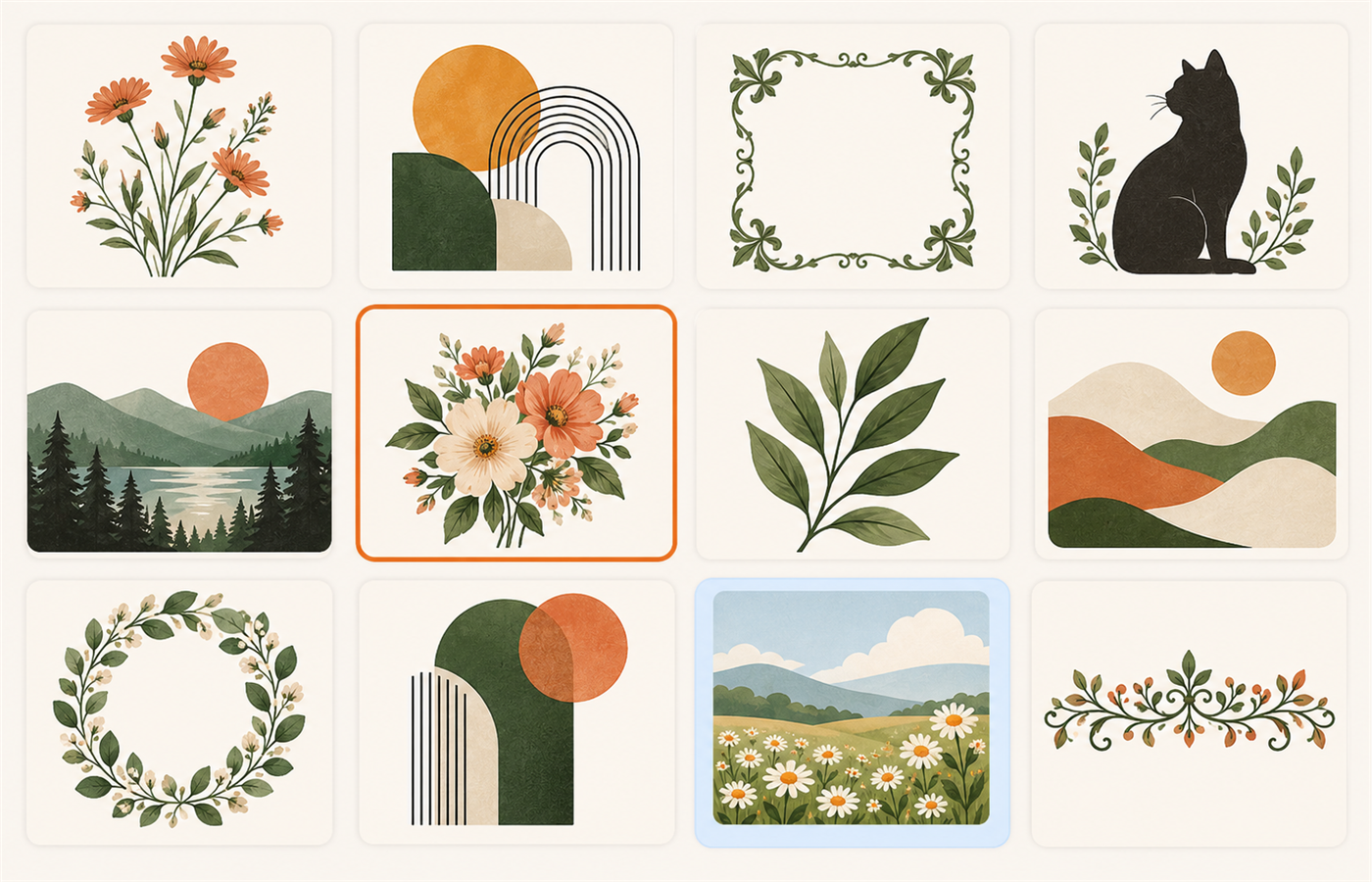
Select several files, then download only those
Clicking a card adds it to the current selection. Clicking it again removes it, like a gallery selection. The last selected SVG or PNG stays open in the preview, while every selected card remains highlighted.
When you have found the useful files, download the selected SVG files as one ZIP, or create a ZIP of full-size PNG copies. PNG copies are full exports, not the small catalogue thumbnails. This is practical when a 30-file archive contains only 20 designs you want to keep for a new order.
Folders, ZIP archives and unsupported files
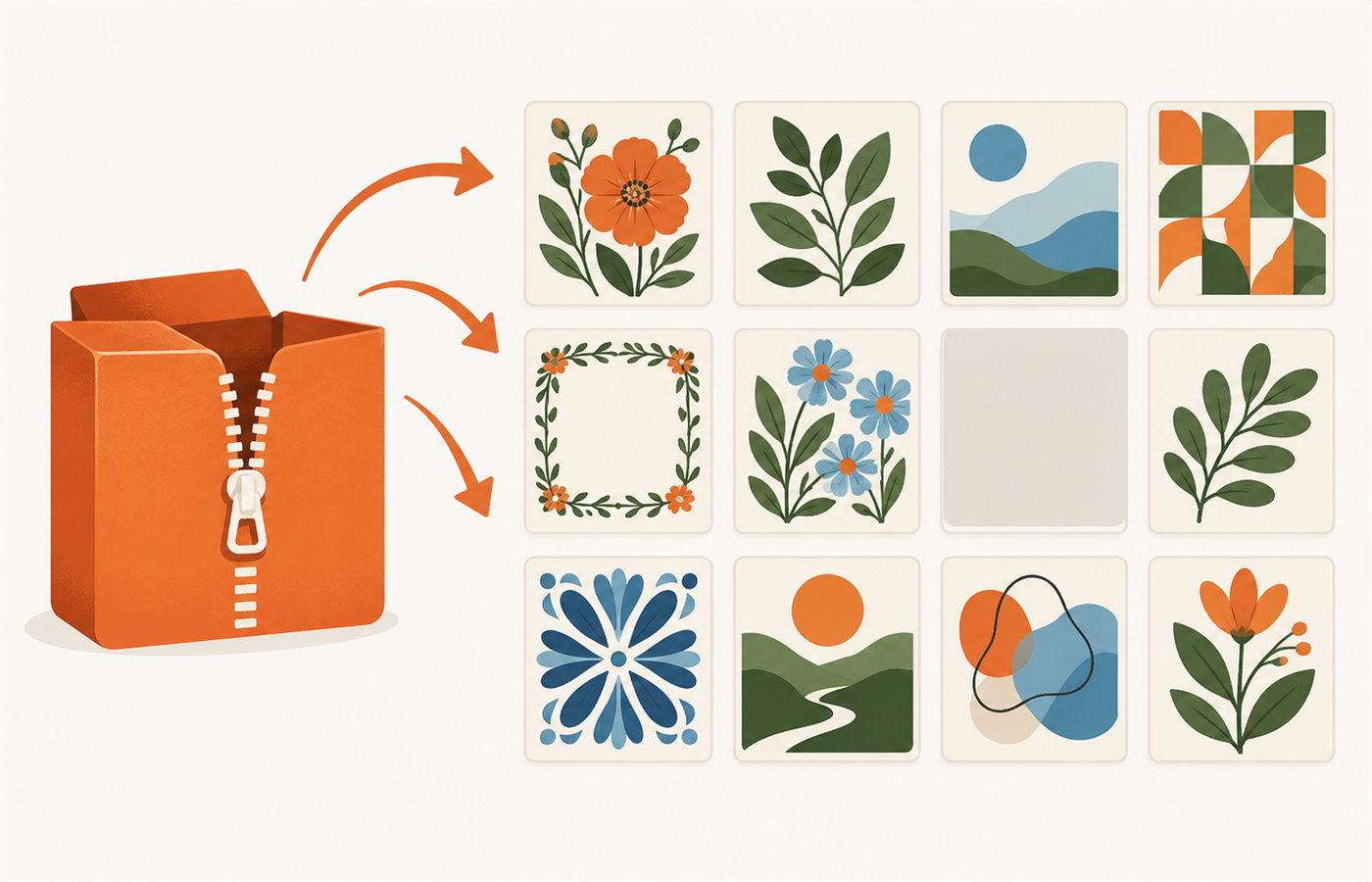
A ZIP archive can be opened for the first visual review without unpacking it first. SVG and PNG receive previews; a CDR or another specialised file can remain in the list so it is not lost, but the browser does not pretend to render it safely. Export such a file from the program that supports it if you need a real preview or SVG copy.
For a very large collection, begin with one themed archive rather than an entire drive. Building thumbnails still depends on the number, size and complexity of the files and on the device.
Keep source files safe
Reading, previewing and creating downloaded copies happen locally in the browser. The original file in the selected folder is not renamed or overwritten. Treat a renamed download as a new working copy, and keep the original ZIP or folder separately.
After choosing an SVG, check its physical dimensions and contours before using material. If the design contains separate parts, move on to the sheet layout only after the file and material size are confirmed.
A short checklist before the next step
- Is this the working SVG rather than a PNG preview or a cover image?
- Does the downloaded copy have a meaningful name?
- Have the physical size and contours been checked in the next tool?
- Are margins, material direction and spacing still appropriate for the real job?
FAQ
Do I need to unpack a ZIP first?
No. You can inspect supported files in one ZIP before extracting the copies you need.
Can the catalog edit or convert CDR?
No. CDR stays visible by name, but you should use CorelDRAW or another compatible program to open or export it.
Are selected PNG downloads only thumbnails?
No. The ZIP contains full-size PNG files or newly exported full-size PNG copies of selected SVG files.
Are my files uploaded?
No. The catalog works locally in the browser. Keep your own backups of source folders and archives.
Next practical step
Open the SVG and ZIP catalog, choose one recent collection and find a design by thumbnail rather than by filename alone.
Next practical step
After selecting a design, check it before cutting or set its physical size.