SVG and file preparation

SVG geometry can stay correct while different software interprets its physical dimensions differently.
Few things are more frustrating than opening an SVG and finding that the design is the wrong physical size. A shape that looked correct in one program may appear tiny, oversized or slightly different in another. This can happen even when the artwork itself looks perfectly fine.
The problem is usually not that the SVG has lost its geometry. More often, different programs interpret its dimensions, units or scale in different ways. The safest response is to check the file systematically before cutting, printing or sending it to another person.
What width and height mean in an SVG
An SVG is a vector file. Its shapes are described mathematically, using paths, lines, curves and other objects rather than a fixed grid of coloured pixels.
An SVG may contain width and height information that describes its intended physical size. It may also contain a viewBox, which defines the internal coordinate system used to draw the artwork.
In simple terms:
- width and height describe the intended outer size;
viewBoxdescribes the coordinate space in which the artwork is drawn;- units tell software how to interpret millimetres, inches, points or pixels;
- scale determines the relationship between the coordinate space and physical output.
These elements work together, but they are not always written or interpreted in the same way by every application.
Geometry versus physical dimensions
Geometry is the structure of the design: the position of paths, the size of holes, the distance between elements and the shape of the contours.
Physical dimensions describe how large that structure should be when displayed, printed or manufactured.
Imagine a square drawn using coordinates from 0 to 100. Its geometry may be internally consistent, but the square could be intended as 100 millimetres, 100 pixels or another physical size depending on the file’s settings and the program reading it.
This is why opening the same SVG in different software can produce different results. Applications may agree about the shape but disagree about the relationship between coordinates and physical units.
The issue can also appear when importing an SVG into cutting, drawing or print software. The receiving program may use its own import assumptions, convert units or expose a scale option that changes the result.
A reliable checking method
1. Inspect the source dimensions
Before importing the file into the final production program, inspect its width, height and viewBox information if available. Look for an explicit unit and compare the stated dimensions with the intended result.
Do not change values immediately. First record what the file currently says. A dimension that looks unusual may be correct for the coordinate system being used.
2. Choose the intended physical unit
Decide whether the project is being prepared in millimetres, inches or another unit supported by the workflow. Use the unit that matches the final production environment.
For a physical object, define the intended real-world size before changing the file. Decide how wide the finished sign, template or cut part should be instead of relying on whichever unit a program happens to display.
3. Use a known-size test square
Add or create a simple square with a known physical size. It provides a reference when the file is opened elsewhere.
The test square should be easy to measure and should not depend on a complex artwork detail. Check whether the receiving program displays or imports it at that size.
4. Import into the final production software
Open or import the file in the program that will actually be used for cutting, printing, plotting or another final operation. Checking only in the design program is not enough.
Observe the imported width and height. Check whether the known-size square matches the intended measurement and whether the artwork remains positioned correctly.
5. Verify actual size before production
Measure or inspect the final imported result before cutting or printing. Confirm the outside dimensions and important internal features such as holes, slots and repeated spacing.
If the file is being sent to another person, communicate the intended physical size separately rather than assuming the recipient’s software will interpret the SVG exactly as yours does.
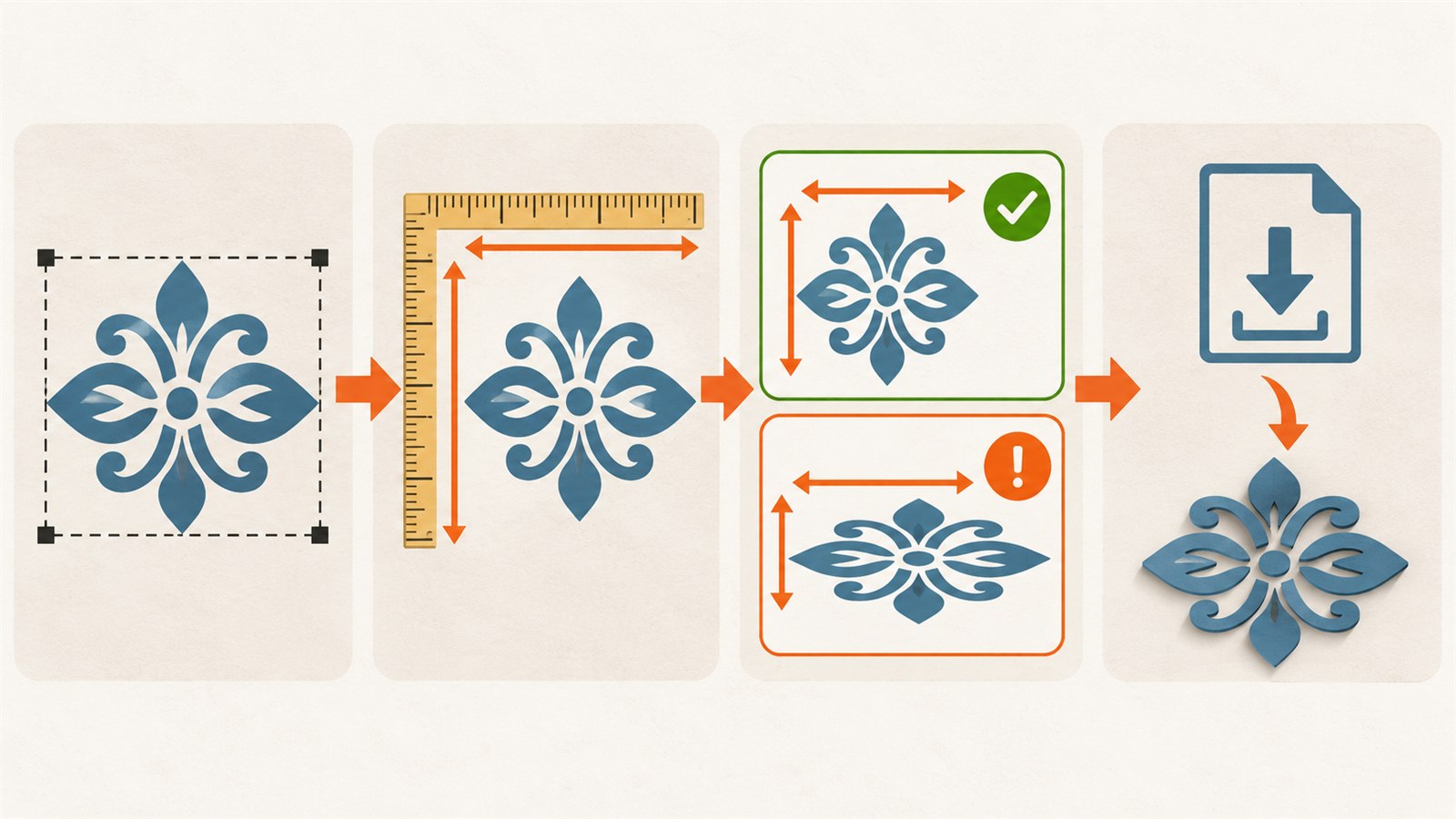
Check the source dimensions, test a known-size object and verify the imported result in the final program.
Pixels and DPI are related, but not the whole answer
Pixels and DPI are mainly associated with raster images such as photographs or PNG files. A raster image is made from a grid of pixels, and DPI describes how those image pixels are placed into a physical inch during output.
SVG is different because its shapes are vector geometry. It does not become physically correct simply because a particular DPI value has been selected. DPI may matter when a raster image is embedded in or placed alongside an SVG, but it is not a universal fix for SVG sizing.
A program may use a default relationship between pixels and physical units, or offer an import choice. That behaviour can vary. Treating DPI as the single answer can hide the real issue, which may be the relationship between units, width, height and viewBox.
Why changing one number can create new problems
Changing a width or height value without understanding the scale relationship may make the outer design appear correct while changing other details unexpectedly.
A hole may become the wrong size, a stroke may appear thicker or thinner, or an offset may no longer provide the intended clearance. If width and height are changed independently, the design can also be stretched.
The safest change is usually one that preserves the aspect ratio and keeps the internal coordinate relationship clear. Even then, inspect important features after scaling. A design can look proportionally correct while still producing an unsuitable hole, slot or line width.
Do not assume that changing the visible size in one application permanently fixes the file for every other program. Save a controlled version, reopen it in the final workflow and verify again.
Separate advice for different uses
For a cut file
Check outside dimensions, hole sizes, slots, repeated spacing and features that affect assembly. Confirm that the imported design fits the material and that the final program has not applied an unexpected scale.
For a print layout
Check page size, artwork dimensions, margins and output settings in the final print workflow. A design that looks correct on screen may be scaled to fit a page or adjusted by a print dialog.
For an image placed inside an SVG
Check both the SVG container and the raster image. The SVG may have correct physical dimensions while the embedded image has a different pixel size or resolution. Verify whether the image is resized, cropped or stretched.
Common symptoms and safer checks
| Symptom | Likely cause | Safest check |
|---|---|---|
| SVG opens much too small or large | Different unit or pixel interpretation | Compare width, height, units and viewBox |
| Outline looks right but holes are wrong | Scaling or import conversion affected internal geometry | Measure important internal features |
| Design is stretched | Width and height changed independently | Preserve aspect ratio and reopen the file |
| Image inside SVG is blurry | Raster image lacks enough pixels | Check pixel dimensions and intended physical size |
| One program shows a different size | Applications interpret SVG dimensions differently | Test a known-size square in the final program |
| DPI changes do not fix the SVG | DPI is being used to solve a vector-unit issue | Review SVG units, width, height and viewBox |
Common mistakes
Do not assume that every SVG editor interprets dimensions identically. Do not treat a pixel count as a physical size, or change visible numbers without checking holes, strokes, offsets and assembly features. Finally, do not rely on one DPI value because it worked in another project.
Frequently asked questions
Why does my SVG look correct but open at the wrong size?
The geometry may be correct while the receiving program interprets units, width, height or viewBox differently.
What is a viewBox?
A viewBox defines the internal coordinate space used by an SVG. It helps describe how the artwork’s geometry maps to displayed or physical dimensions.
Does every SVG need a DPI setting?
No. DPI is mainly relevant to raster images. SVG shapes are vector geometry, so their physical size depends on dimensions, units, coordinate system and the interpreting software.
How can I check an SVG before cutting?
Inspect dimensions and units, add or use a known-size reference, import the file into the final production program and verify the actual dimensions.
Why did changing the width make holes or strokes behave differently?
The change may have altered the scale relationship or applied a conversion that affected internal features. Check aspect ratio, holes, strokes and offsets after resizing.
Is there one import setting that works everywhere?
No. Different programs may interpret SVG dimensions and import options differently. Test the file in the program used for the final operation.
Does increasing DPI make an SVG more accurate?
Not for vector geometry by itself. DPI may affect raster content, but it does not automatically correct SVG units or physical dimensions.
Conclusion
An SVG can have correct geometry and still open at the wrong physical size because software interprets its dimensions differently. Check width, height, units and viewBox before changing anything, then verify the file with a known-size reference in the final production program.
Before your next cut or print, measure the imported result and inspect the details that must be accurate—not only the outside outline.
Keep learning
Choose another practical guide or return to the tools for the next step.