SVG and file preparation
A vector file is not simply an image that can be saved under any extension without consequences. SVG, DXF and AI can all contain lines and shapes, but the next application may handle text, layers, strokes, fills, effects, dimensions and hidden objects differently. That is why “Which format is best?” is usually less useful than “What needs to happen to this file next?”
Laser cutting, CNC work, plotting, printing, design editing and digital-product delivery may each need a different export. That is normal. Do not look for one file that must work perfectly everywhere. Keep a dependable editable source, create separate exports for real tasks and check them in the place where they will actually be used.
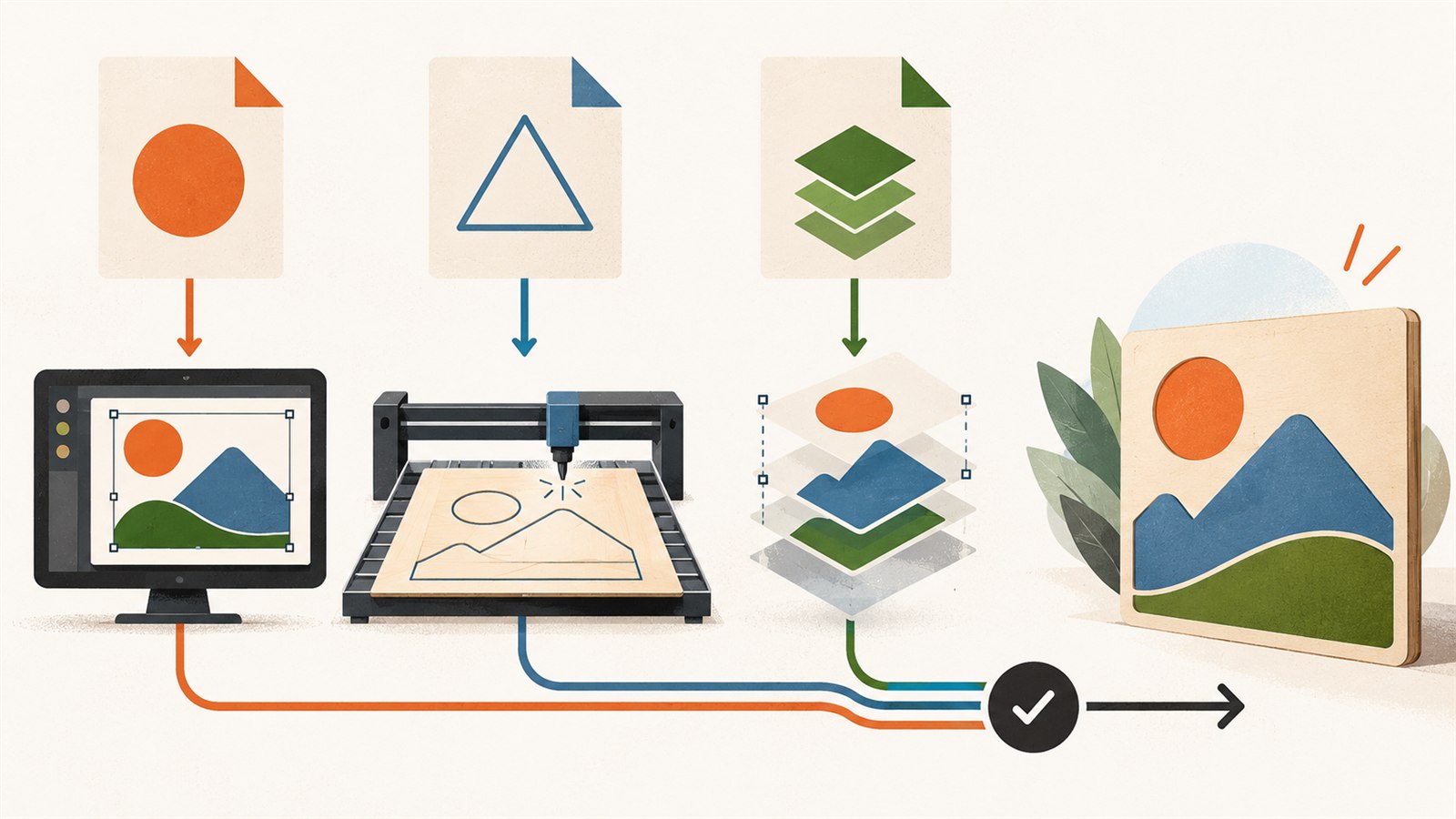
Choose a format by its next use: editing, production, delivery or sale—not only by the software that created it.
Keep the source separate from exports
The source file is your editable working version: the place where text, layers, variants and design decisions can be revised. An export is a copy for one particular next step. Avoid repeatedly editing the only exported file when you can return to the source. After several conversions, it becomes difficult to know where the clean version lives and what changed along the way.
A simple folder structure is enough: original, exports and customer-files, or any names that suit your workflow. The point is not a perfect system. It is to avoid sending a customer a working file full of drafts or trying to fix the master design in an old delivery copy.
What the formats are commonly used for
SVG
SVG is a common vector format for web design, artwork and many cutting or printing workflows. It can store paths, text, groups and dimensions, which makes it useful for sharing. Support varies, though: one application may handle simple paths well while another treats text, strokes, masks or complex effects differently.
If an SVG is headed for cutting, check declared physical size, viewBox, paths, duplicate objects and the role of each layer. If it is sold as a digital product, include a clear instruction and do not promise that it will open unchanged in every buyer’s program.
DXF
DXF is often used in drafting and production-oriented environments. Its behaviour depends on the application, DXF version and the type of geometry in the file. When exporting, pay close attention to scale, curves, strokes, text and layers. A curve that looked smooth in the original file may need inspection after transfer.
Do not treat the DXF extension as proof that a file is ready for every machine or workflow. Open the export in the target application and check actual size and critical contours before a full job.
AI
AI is commonly associated with editable design documents and may be useful within a compatible design workflow. When you share an AI file, consider whether the other person has the right application and whether they need editable layers, text or effects. A production or customer workflow may still need an additional export in a different format.
Do not send AI only because it was the original format. If the recipient needs an SVG for cutting or a PDF for print, prepare and check that version instead. What is convenient for a designer is not always convenient for a buyer or production process.
Choose by the final use
Before exporting, state one action: “this file will be imported into cutting software,” “this file will be edited by a designer,” “this file is for customer printing,” or “this file belongs in a digital bundle.” Then check which format and level of editability are genuinely needed for that step.
Sometimes a buyer benefits from several formats. In that case, do not place them in an archive without explanation. Use clear names and a short README that says what each version is for and what needs checking in the buyer’s own software. Several files are helpful only when their differences are understandable.
Do not export extra extensions “just in case.” Every additional file needs to be opened and checked. An untested DXF or AI file can create more support questions than one well-prepared SVG with an honest instruction.
A practical export workflow
1. Prepare the source file
Check that the editable source does not contain accidental variants, temporary guides or unnecessary objects. Save it separately before conversion.
2. Make one copy for one destination
Export a file for a specific task. A filename can include product, format and destination, such as floral-sign-cut.svg or floral-sign-cad.dxf. Avoid making final, new and copy the only description of a version.
3. Check size and geometry after export
Open the exported file in the target application. Compare the overall size, key distances, text, curves, fine lines and hidden objects. For a production file, check operation assignment and order as well.
4. Test the critical feature in the real workflow
For cutting or engraving, run a small test on suitable material. For printing, make a sample print. For a digital product, extract the finished package into a new folder and open the files as a buyer would. An export is not fully checked when it is created without an error; it is checked when the next step actually accepts it.

A dependable chain is simple: preserve the source, make an export for a particular job and check it in the real next step.
What commonly changes during transfer
| Problem | Likely cause | Practical check |
|---|---|---|
| The file opens at a different size | Units or scale are interpreted differently | Compare width, height and critical distances in the target application |
| Text looks different | The needed font is unavailable or handled differently | Open the export in the receiving environment or decide on text treatment early |
| Curves or strokes changed | The formats or applications transferred geometry differently | Inspect complex paths and fine elements at useful zoom |
| Extra lines appear | Guides, duplicates or hidden objects were exported | Review layers and the production copy before delivery |
| A buyer cannot tell what to open | Several formats were included with no explanation | Add a README that explains the purpose of each file |
Limits and honest language
You cannot guarantee that SVG, DXF or AI will open identically in every application, version or machine. Compatibility depends on the receiving software and on which features were used in the file. That is a normal part of sharing complex vector data, not a failure of one format.
Do not promise a buyer that a file is “ready for every cutter” or “works in all programs” unless you can truly support that claim. It is more useful to state the file type, intended purpose, checked size and the need to open it in the buyer’s own workflow before production.
Frequently asked questions
Which format is best for laser cutting?
The best choice is the one that opens correctly and has been checked in your target application. SVG is often useful for vector paths, but the actual workflow and the application’s capabilities matter more than a general rule.
Should a buyer receive SVG, DXF and AI together?
Only if you prepared and checked each version and can explain what it is for. One clear format is better than three untested ones.
Can DXF change size?
Scale and units need checking when files move between applications. After export, compare physical dimensions and key distances in the target software.
Should text be converted to outlines?
It depends on the goal. Outlines can reduce the risk of font substitution, but they remove easy text editing. Keep an editable source and decide based on the destination workflow.
Why does a file open but look different?
The receiving application may handle fonts, effects, strokes, masks, layers or units differently. Opening without an error does not mean the export is ready for the next step.
What matters more: the format or the export check?
The check. A format determines possible features and limits, but only opening the real export in the next application shows whether it suits your particular job.
Next practical step
Take one finished design and identify its immediate destination. Save the source separately, export one clearly named copy for that use and open it in the program where it will be used. Check size and a complex feature before adding other formats that may not be necessary.
Keep learning
Choose another practical guide or return to the tools for the next step.