Digital products and selling
A QR code can connect a physical product to its digital next step: an assembly instruction, care guide, download page, contact details, product information or Wi-Fi access. The code itself does not explain why someone should scan it, and it does not make packaging more useful on its own. Its value comes from a clear purpose and a destination that genuinely helps at that moment.
For a small business, a QR code is useful when a long link would be awkward to print or when a buyer needs information after unboxing. Before a print run, however, test it at its real size, on the real material and with the actual content. A code that works perfectly in a large on-screen preview may be too small, too low-contrast or poorly placed on the finished label.
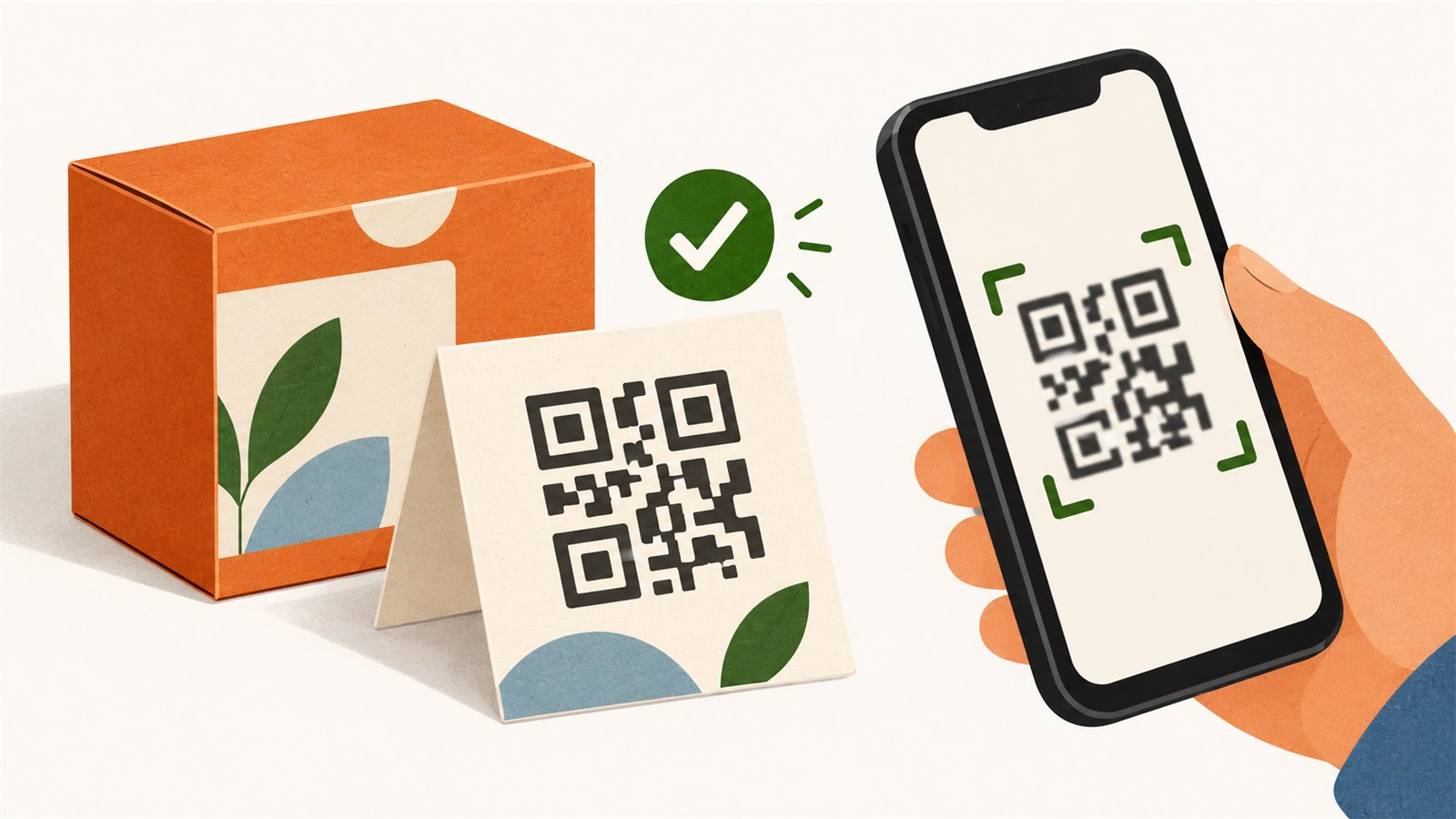
A QR code helps when a short explanation tells the buyer what they will get after scanning it.
Decide what should happen after the scan
Do not start with the appearance of the code. Start with the buyer’s action. One code should have one clear destination, such as:
- an assembly or care instruction;
- a page for a digital companion download;
- a product page with sizes or variants;
- a support or contact page;
- guest Wi-Fi details, when that makes sense for a place or event.
A link to a general home page is often too vague. A link to a specific instruction is usually more useful. If the printed card says “Scan for assembly instructions,” the opened page should lead directly to those instructions rather than make the person search through a storefront.
Also consider the life of the destination. A printed code cannot update itself if the address changes. Before printing, confirm that the link is stable enough for the product and that someone will maintain the page after the sale.
Where QR codes genuinely help
A QR code does not need to appear on every product. Use one where it removes a meaningful step. A handmade product package might link to care guidance. A digital bundle might include a printed card pointing to its guide. A product insert might lead to current help or a simple contact page.
Give the buyer a reason to scan it beside the code: “Assembly guide,” “Care video,” or “Open instructions.” The wording can be short, but a small prompt is clearer than a decorative square with no context.
Do not make the QR code the only route to essential information when a short visible instruction would also help. A buyer may have no connection, no camera access or no wish to scan a code. The code should simplify a step, not create a new barrier.
Prepare the code for a design and print
Save and check the exact content
Review the destination before generating the code. One incorrect character in a link can turn a carefully printed label into a dead end. After generating the code, scan it from the exported design, not only from the original preview.
If the code opens a web page, use a phone to check the result. Confirm that the page loads, the core text is readable and the next action is obvious. The QR code only gets a person to the page; it does not fix an unclear or difficult mobile experience.
Keep the code square
A QR code needs to remain square. Stretching it horizontally or vertically can make its small modules harder to recognise. Keep its proportions when scaling and do not crop its edges.
Leave clear space around the code. Do not press text, borders, decorative lines or dense artwork directly against it. The exact amount of clear area needed depends on the code, print method and layout, which is why a real scan test matters more than an assumption made on screen.
Use readable contrast
Dark code on a light, even background is the most dependable starting point. Do not judge readability with your eyes alone. Some colour combinations seem high contrast on screen but are hard for a camera to recognise, particularly in dim light or on textured material.
Avoid transparent codes over busy images, very fine lines, glare, metallic surfaces and placement near a fold. If the packaging style calls for colour, test the final printed version rather than relying on the digital mock-up.
Consider real size and location
A very small code saves space but may be difficult for a camera to scan. A large code placed beside a fold, perforation or label edge can also fail. Print a sample on similar material, cut it to the final size and scan it from the distance and angle a buyer is likely to use.
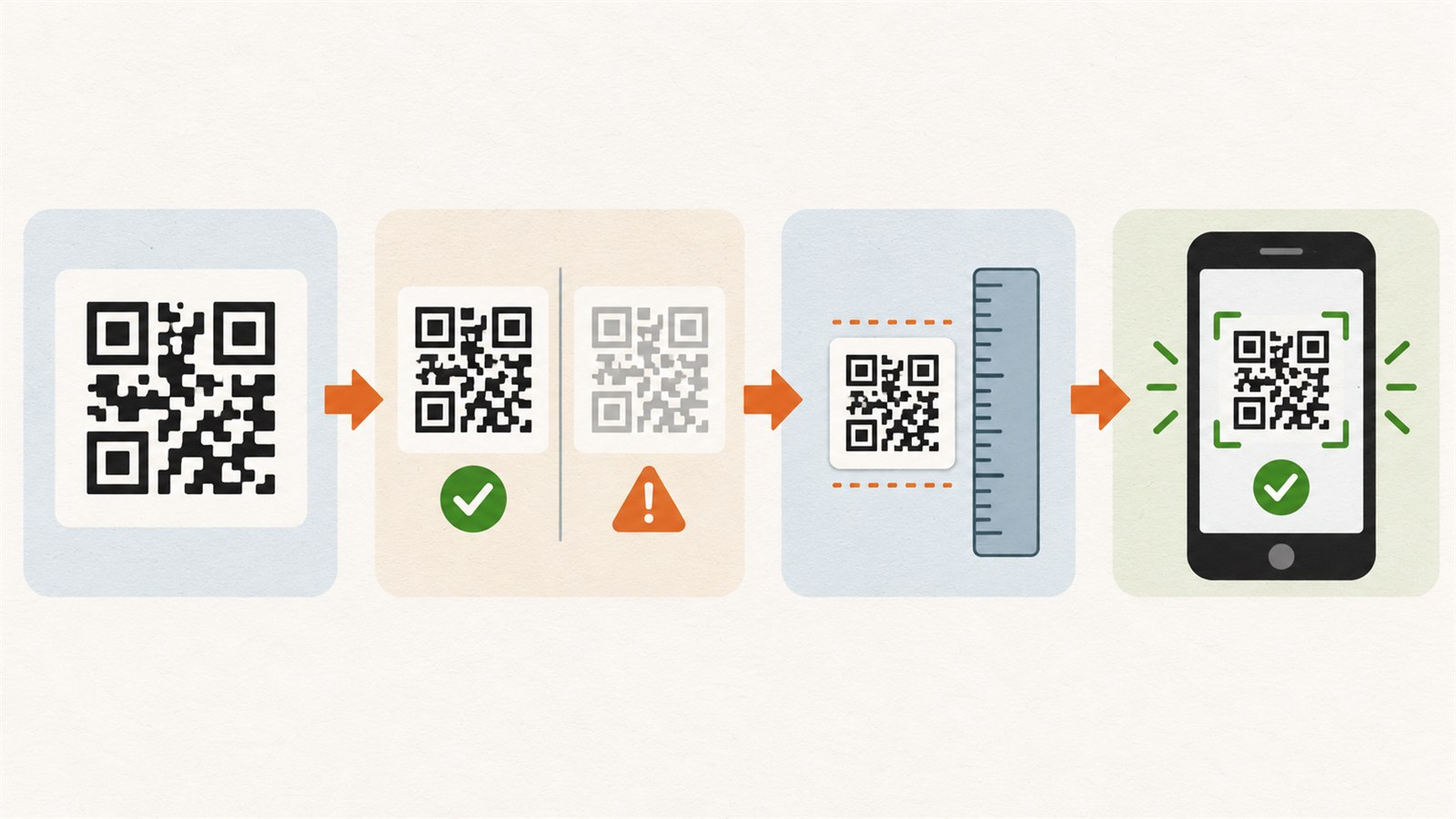
A dependable process starts with a useful destination, checks the exact content and ends with a real test of the finished layout.
A quick check before a full run
| Problem | Likely cause | Practical check |
|---|---|---|
| A camera cannot find the code | The code is too small, too low-contrast or crowded | Print a sample and scan it in ordinary lighting |
| The code goes to the wrong place | The content has an error or the link is outdated | Open the destination from more than one device before printing |
| The page opens but is not useful | The code leads to a general page with no next step | Ask someone to find the intended information without help |
| The code is no longer square | It was stretched in the layout | Compare height and width and preserve proportions |
| It works on screen but not on packaging | Glare, texture, folds or edges interfere | Test the actual material and placement |
What a QR code cannot promise
A QR code does not guarantee ongoing access to a web page, compatibility with every camera or success in every environment. Print quality, device, lighting, internet access and page content all sit outside the code image itself. Do not use one as the only path to genuinely critical information when a short text fallback is practical.
It should not become decorative clutter either. A QR code on packaging or an instruction card needs a clear function. If it does not simplify a real next step, leaving it out may be more honest and more useful.
Frequently asked questions
Can I put more than one QR code on one card?
You can if each code has a clearly different and visible label. Several similar squares are easy to confuse, so one code per card often works better.
Do I need to print the full URL beside the code?
Not always. If information is important enough to need a non-scanning route, a short readable address or text instruction can be a useful fallback. The right choice depends on the card and its purpose.
Can a QR code use colour?
Yes, if it remains square, high enough in contrast and passes a real scan test. Do not depend on an on-screen preview alone.
Why does a code scan from my screen but not from a label?
Printing adds texture, glare, scaling, colour variation and possible distortion. That is why the final material and size need their own test.
Can a QR code link to a digital-product download?
It can point to an instruction or download page when that route is clear and appropriate for your system. Before publishing, verify that the link is current and gives the buyer the expected next step.
Should I test with more than one phone?
That is a sensible extra check before a larger run. It cannot prove compatibility with every device, but it can reveal obvious problems with size, contrast and content.
Next practical step
Choose one real use case, such as a care instruction. Make a code with an exact destination, place it in a layout with a short prompt, print a test at the final size and scan it before ordering or producing a larger run.
Keep learning
Choose another practical guide or return to the tools for the next step.