SVG and file preparation
An SVG can look finished on screen and still cause trouble in a laser, CNC, plotter or other cutting workflow. An extra line, hidden object, duplicate path, wrong physical size or feature that is too small may not become visible until a job starts. Preparation does not guarantee that every program will interpret a file in the same way, but it makes the design easier to inspect and reduces avoidable surprises.
The most useful principle is to work from a copy. The original design and a production version have different purposes. Keep the original for future revisions; use the prepared copy for checking, importing and testing on real material.
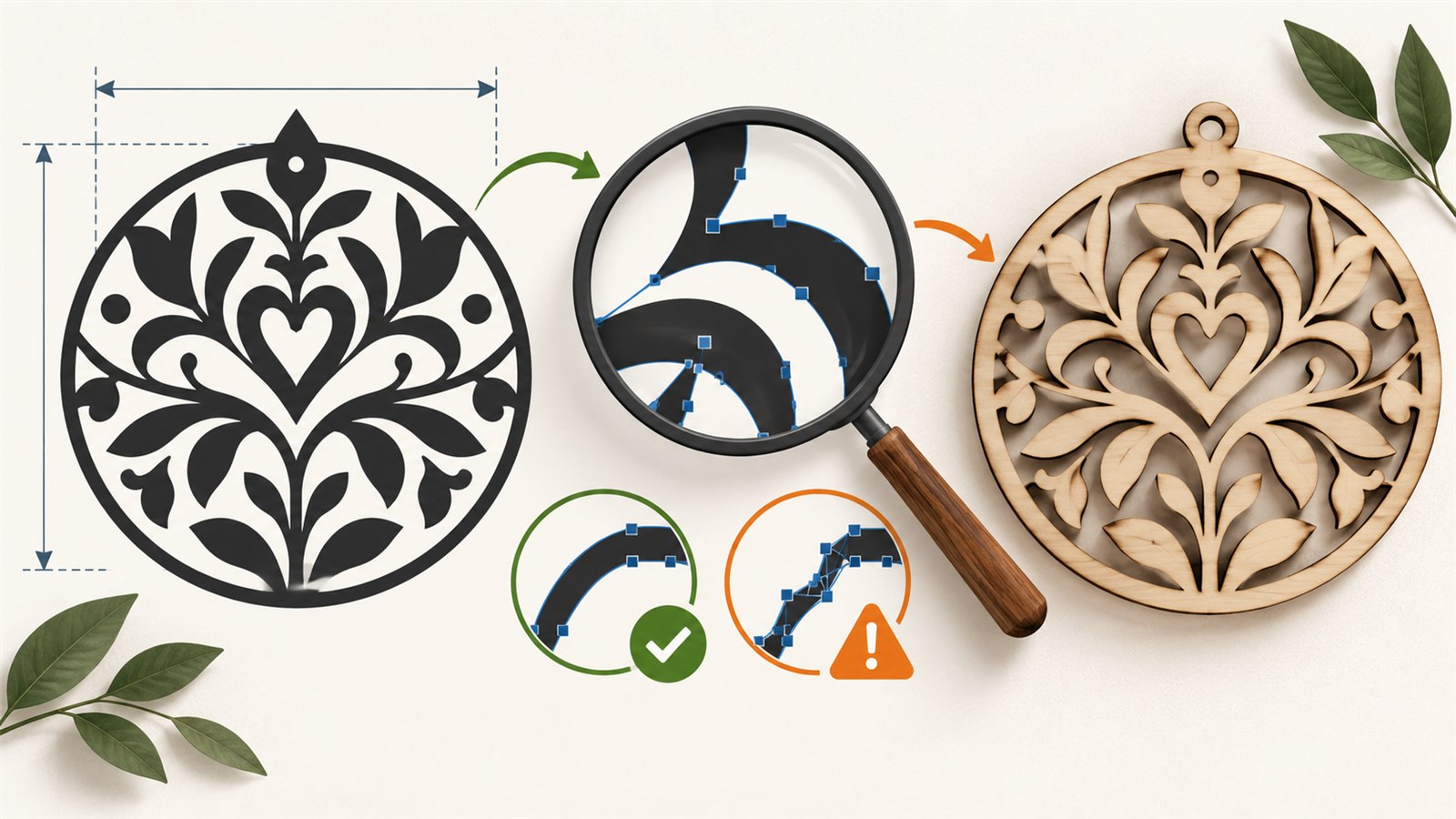
A prepared SVG copy keeps intentional paths, clear size information and separated element roles easier to inspect.
What to check before opening the job
Start with a short review of the whole file. You do not need to change every design feature. The aim is to find elements that could become an unexpected path, wrong operation or weak point in the material.
Ask a few basic questions first:
- What physical size should the finished piece have?
- Which elements will be cut, engraved or used only as guides?
- Does the file contain text that depends on a particular font?
- Which features are the smallest, thinnest or closest together?
- Where are the joins, slots, holes and outer edges?
Do not rely on the filename or browser appearance alone. SVG dimensions, viewBox, units and import behaviour can be interpreted differently by different applications. After importing, compare the expected size with what your production software shows.
Save the original and make a production copy
Create a separate file for preparation and give it a meaningful name, such as lamp-base-cut-v1.svg. Names such as final-final.svg and new2.svg do not explain which version is actually intended for cutting.
In a production copy, you can remove temporary notes, guides, unused variants and decorative elements that do not belong in the job. Keep the source file anyway. You may need it later for a new material, different quantity or revised design.
Check physical size and proportions
An SVG can declare millimetres, inches, pixels or only an internal coordinate system through its viewBox. That is why the same file can open at a different scale in another application. Confirm that width and height match the required physical size and that the artwork has not been stretched.
For a design made of joining parts, check more than the overall dimensions. Review slot widths, hole diameters, thin bridges and gaps between parts. A small scale change can make a join too loose, too tight or unsuitable for the material even when the overall picture seems familiar.
When proportions should remain unchanged, resize with the aspect ratio locked. Independent width and height changes can be a deliberate artistic choice, but they commonly cause problems for circles, text and parts that must fit together.
Find duplicates, hidden objects and extra paths
Duplicate lines are a common source of unexpected repeated processing. They can appear after combining files, copying artwork, tracing an image or revising a project over time. A duplicate is often invisible because it sits exactly on top of another line.
Also inspect hidden layers, temporary frames, guides and old versions. Some programs import objects that appeared disabled or unimportant in the original editor. If something should not enter production, remove it from the prepared copy or place it in a clearly named service group.
Temporarily hide groups one at a time and inspect the remaining elements at useful zoom. This often reveals stray points, older text or a second contour beside an edge.
Separate cutting, engraving and guide roles
Do not keep the outer outline, fold lines, text, positioning marks and decorative areas in one unclear group. Separate them by role so the correct operations are easier to assign after import. Colours and layers can make this logic visible, but they are not universal commands for a machine.
For example, keep outer cuts, internal holes, engraving and temporary marks in separate groups. The temporary group must be deliberately excluded or assigned a safe operation after checking. Before a job begins, confirm the real mapping in your own software, not only the visible colours on the canvas.
Text deserves extra attention. If a file depends on a font installed on one computer, it may look different elsewhere. Check the appearance after import before you run or share the file. Converting important text to paths can reduce font-substitution risk in some workflows, but keep an editable source because paths are harder to revise.

A production copy moves through size checks, path cleanup and role separation before a small material test.
Test critical geometry on material
Even a clean SVG cannot tell you how real material will behave. A narrow slot, thin bridge, small hole, dense text or close lines may look fine on screen but prove weak, tight or unclear in the finished work.
Choose the most difficult feature and test it on a suitable offcut. Where possible, use the same material, thickness, surface side and setup as the full job. You do not need to use a whole sheet; the purpose of the test is to answer a specific question before a large run.
If one part needs to fit another, check that fit physically. Visual matching is not enough because material and process affect the outcome.
Quick problem table
| Problem | Likely cause | Practical check |
|---|---|---|
| A contour is processed twice | Coincident paths exist in the SVG | Hide groups and inspect edges at high zoom |
| The imported size is wrong | Units, viewBox or scaling differ | Compare width and height with the intended physical size |
| A guide or note is processed | A service object stayed in the production group | Separate it and review operation assignments before running |
| A small slot does not work | Geometry is too small for material and process | Test that exact slot on an offcut |
| Text changed appearance | The target environment lacks the expected font | Check the file after import and decide how to handle text |
Limits worth remembering
SVG preparation does not provide universal values for machine settings, passes or tools. Those depend on equipment, material, thickness, focus and other conditions. Check the requirements of your own machine and material, then make a small test.
Applications also do not all handle groups, layers, fills, strokes, text and clipping paths in the same way. If a file matters for production, open it in the exact application where operations will be assigned and inspect the result before running.
Frequently asked questions
Why does an SVG open at the wrong size?
Different units, viewBox settings, pixel dimensions or import behaviour can be involved. Check the declared file dimensions and compare them with the target application’s physical size.
Should every hidden object be deleted?
If it is not part of the production version, it is safer to remove it from the cutting copy or place it in a clearly excluded service group. Do not assume every application will ignore it in the same way.
Can text remain editable?
Yes, when you know the required font and appearance will be preserved in the next workflow. For important text, check after import; in some cases paths reduce substitution risk.
Is checking the outer outline enough?
No. Problems often appear in internal holes, slots, thin bridges, small elements and duplicate paths.
Do I still need a test if the SVG looks clean?
Yes, when there is critical geometry or new material. The screen cannot show how material and processing will behave.
Is a separate production copy worth keeping?
Yes. It makes repeated work easier and records which version was actually tested, without mixing it with the source design or future revisions.
Next practical step
Choose one SVG, make a production copy and spend ten minutes checking overall size, layers, duplicates, the smallest slot and any text. Then import it into the software you will use and run only the critical fragment on an offcut of the material.
Keep learning
Choose another practical guide or return to the tools for the next step.